Local work memory for Claude Code, Codex, and Cursor
Start free with Contextberg for macOS and Windows. Record work context locally, choose your AI model, and share memory with Claude Code, Codex, and Cursor through MCP.
What I built
Contextberg is a local memory app for AI coding agents. It runs in the background, records the context around your work, and makes that memory available to MCP-compatible clients. It is available for macOS and Windows, with a Free plan and ready-to-install desktop apps.
Depending on your OS and recording settings, work context can include screenshots, browser history, input, app/window usage, and agent conversation history. Claude Code, Codex, Cursor, GitHub Copilot, OpenClaw, LM Studio, and other MCP clients can then ask what you were doing and receive useful work context instead of a blank session.
Start free. No build required.
Install the macOS app from a DMG or get the Windows app from Microsoft Store. No source build or development environment is needed. Start on the Free plan without a credit card, review recording permissions, and let your next work session become searchable history.
Begin with recording. When you want on-device AI processing, configure a supported local model through LM Studio. You can also choose a supported cloud route using your own credentials or Contextberg Cloud. Model availability and usage allowances depend on the route and plan.
Why conversation history is not enough
Modern development often moves across multiple AI agents. You might discuss architecture with Claude Code, ask Codex to review a diff, use Cursor for edits, and rely on GitHub Copilot in the terminal.
The problem is that those agents do not see each other's conversations. More importantly, a lot of decisions happen before you ever talk to an agent: reading Stack Overflow, scanning GitHub Issues, looking at logs, trying changes in VS Code, and then deleting them.
Chat history captures the final request. It does not capture the research, screen state, browser tabs, app usage, or dead ends that led to that request. To resume work across sessions, agents need memory of the work around the conversation.
The four pillars
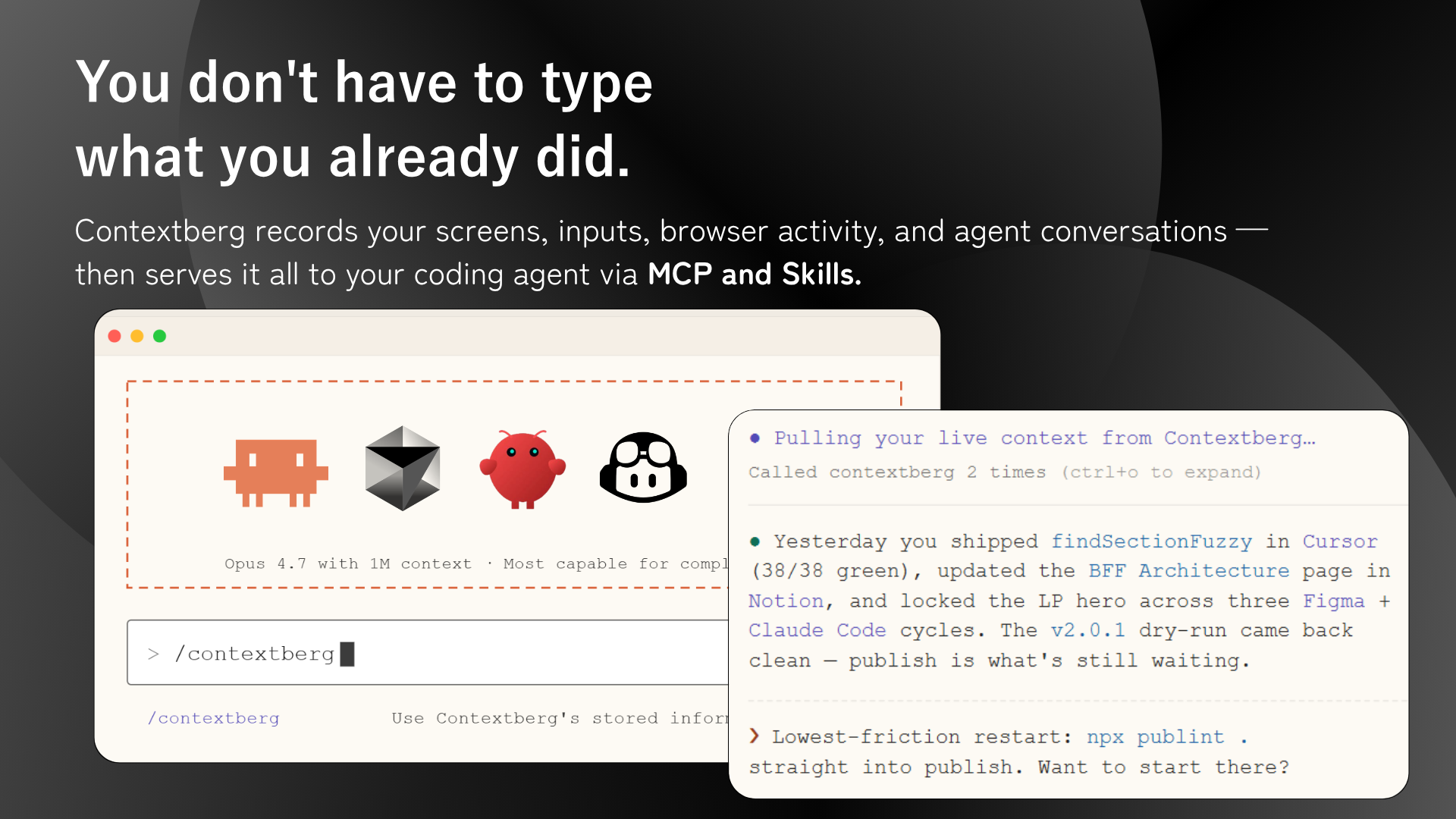
Context: Contextberg records screen, browser, and agent activity so you no longer have to restate what you were doing.
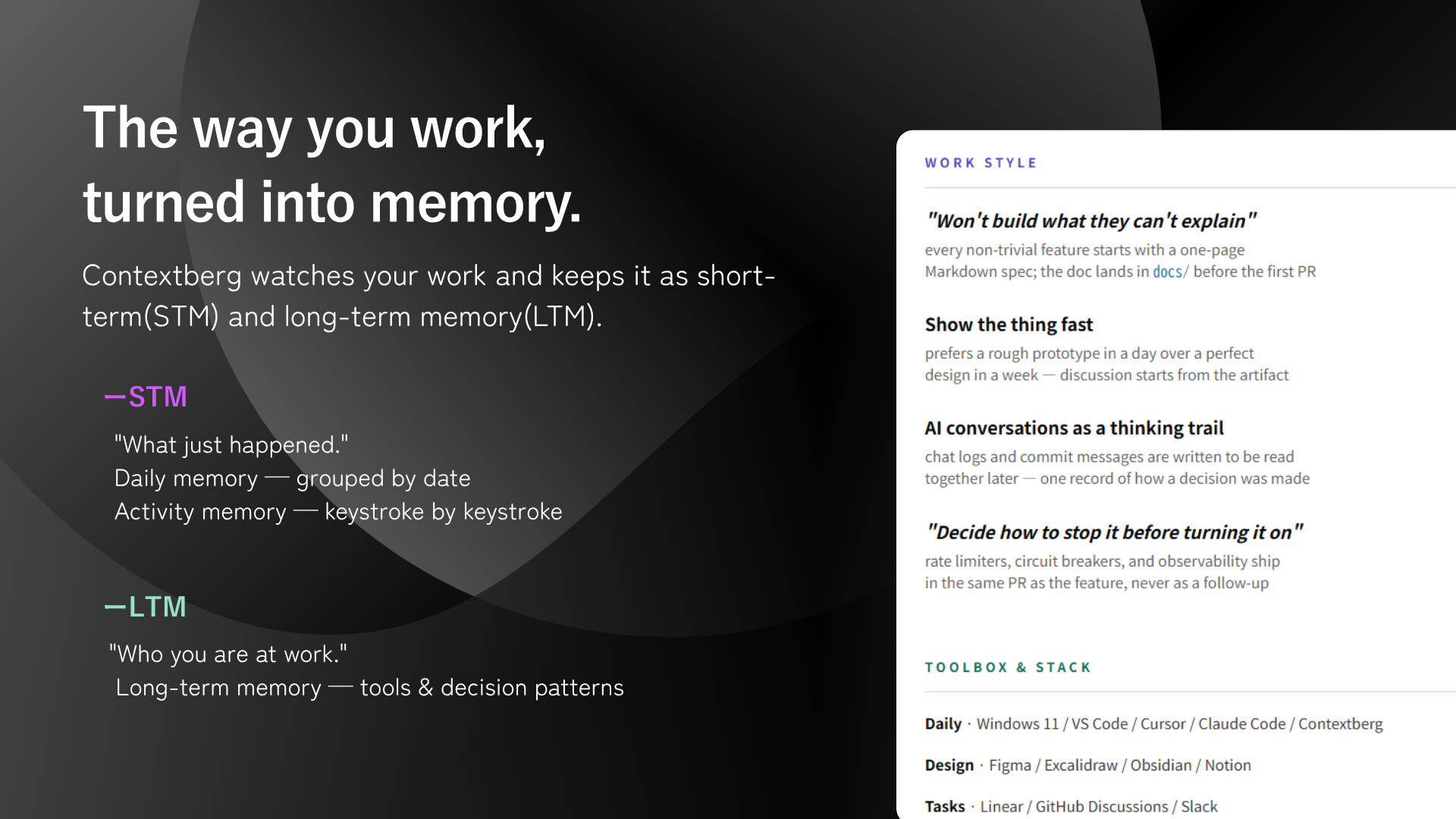
Memory: Hourly reports and long-term memory turn raw activity into structured context that an agent can reason over.
Private: Work history is stored locally. Choose LM Studio for locally configured AI processing, or use a supported cloud route such as OpenRouter, your own provider credentials, or Contextberg Cloud. Cloud requests send the needed context to the selected provider.
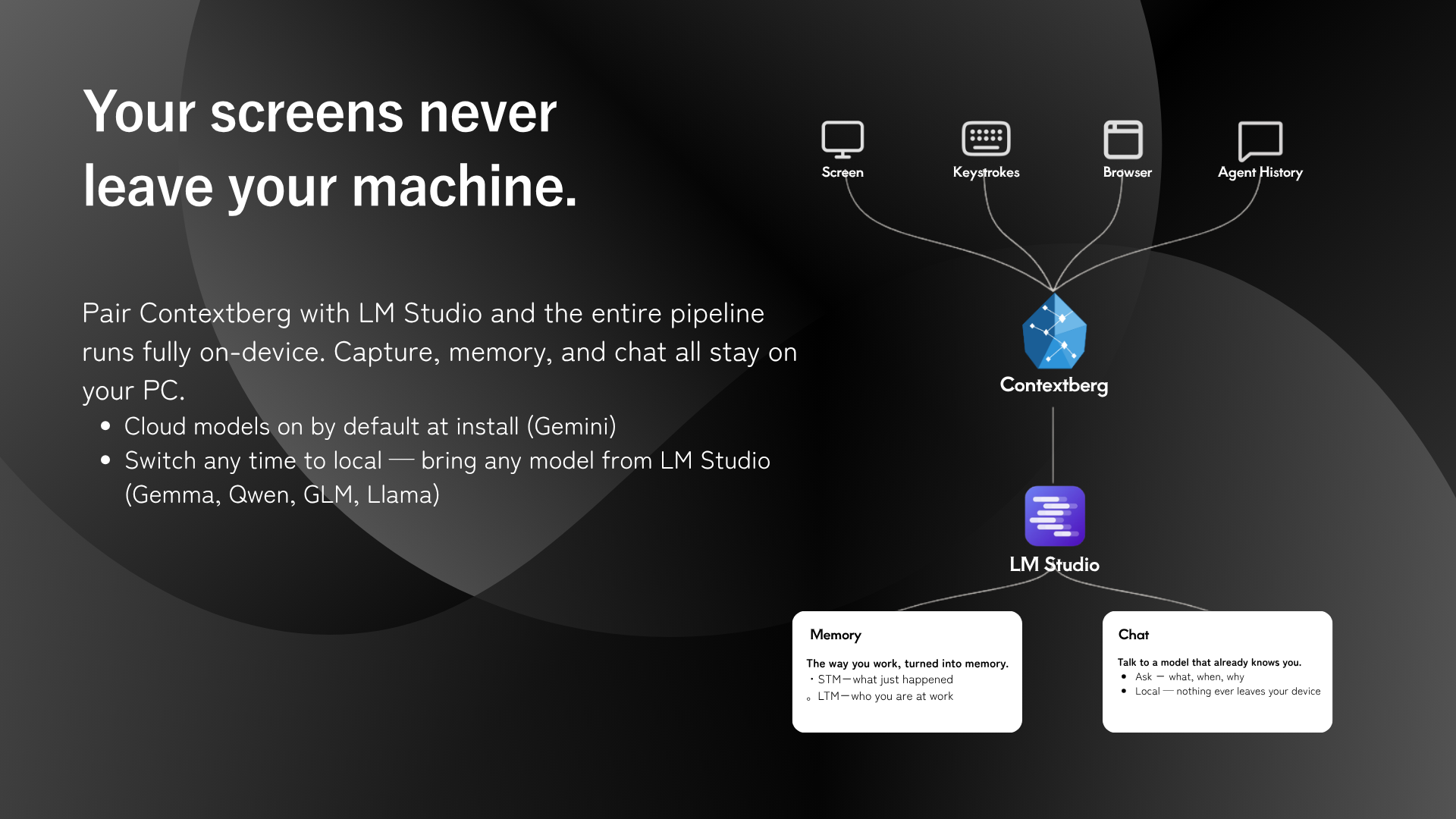
Remember: When you come back, Contextberg can summarize what you were doing and help you pick up from the previous session.
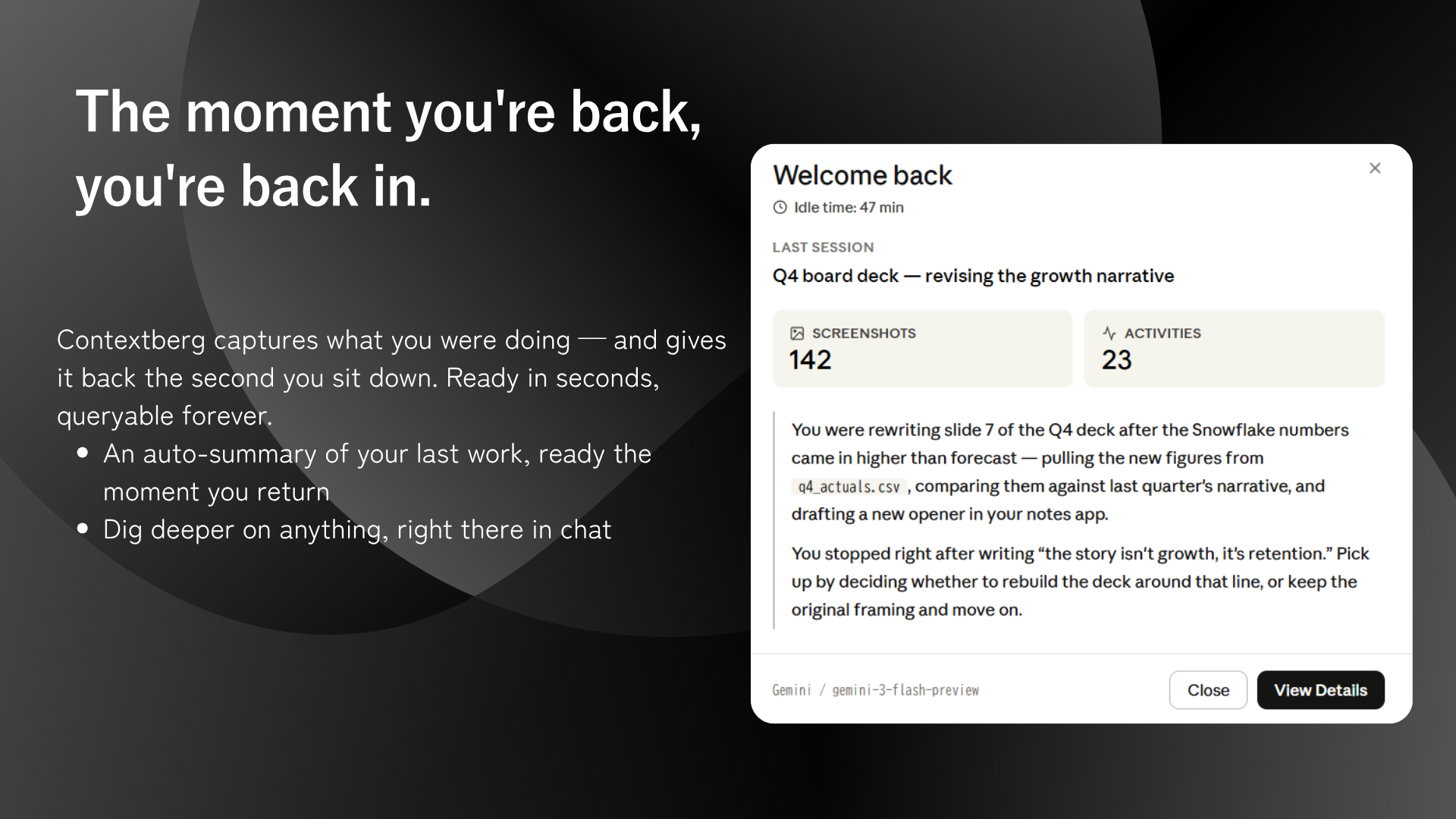
What Contextberg records
The core idea is to merge five signals into one work timeline. App/window usage shows where your time went. Browser history restores what you researched. Screenshots preserve what was visible. Keystrokes give clues about what you were writing or struggling with. Agent conversations connect the work to Claude Code, Codex, Cursor, and terminal sessions.
Each signal is useful on its own, but the combination is what makes it valuable. Conversation history tells an agent what you decided. Screen, browser, input, and app context help it infer why that decision happened.
Record and Memory tabs
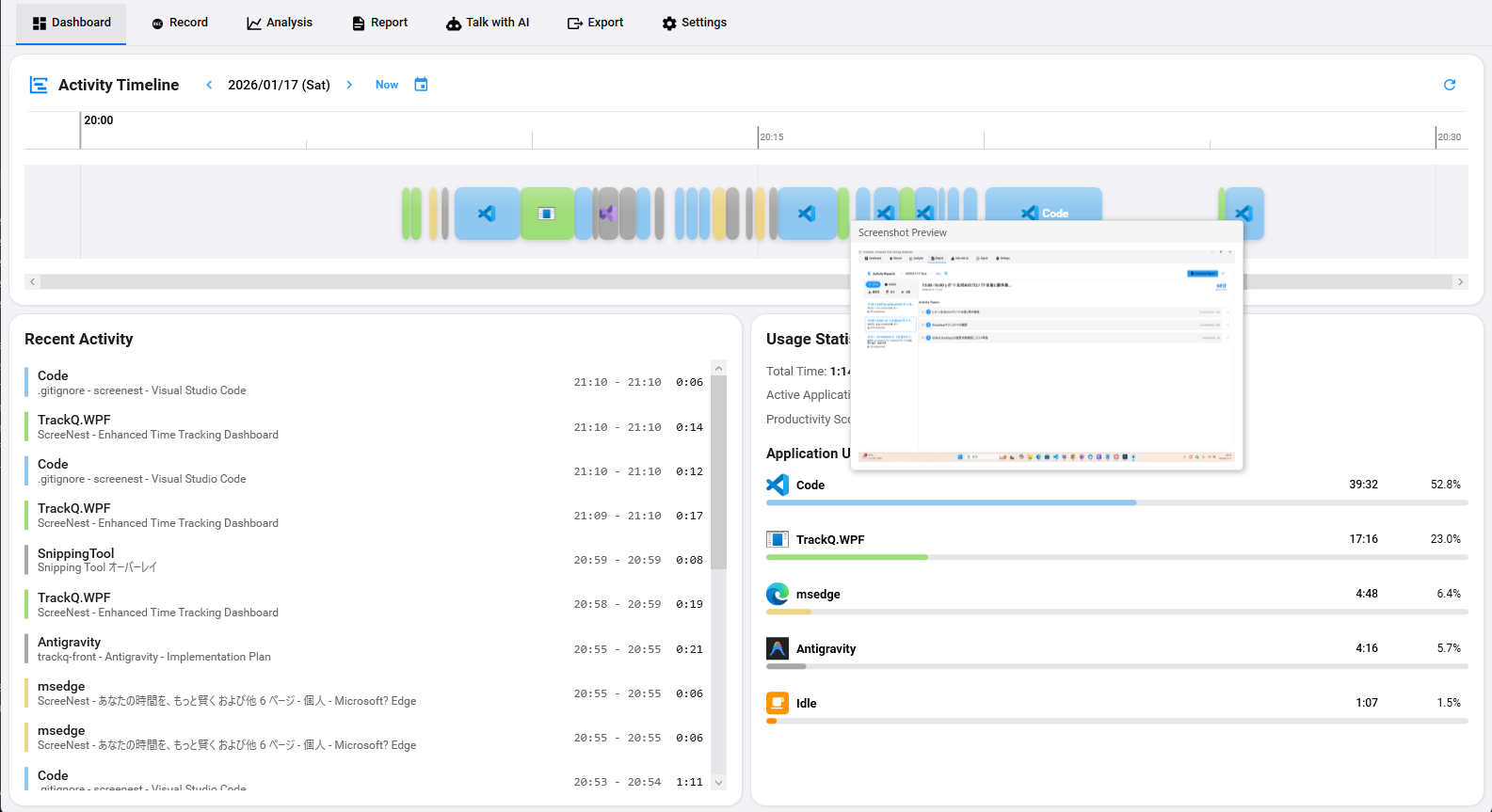

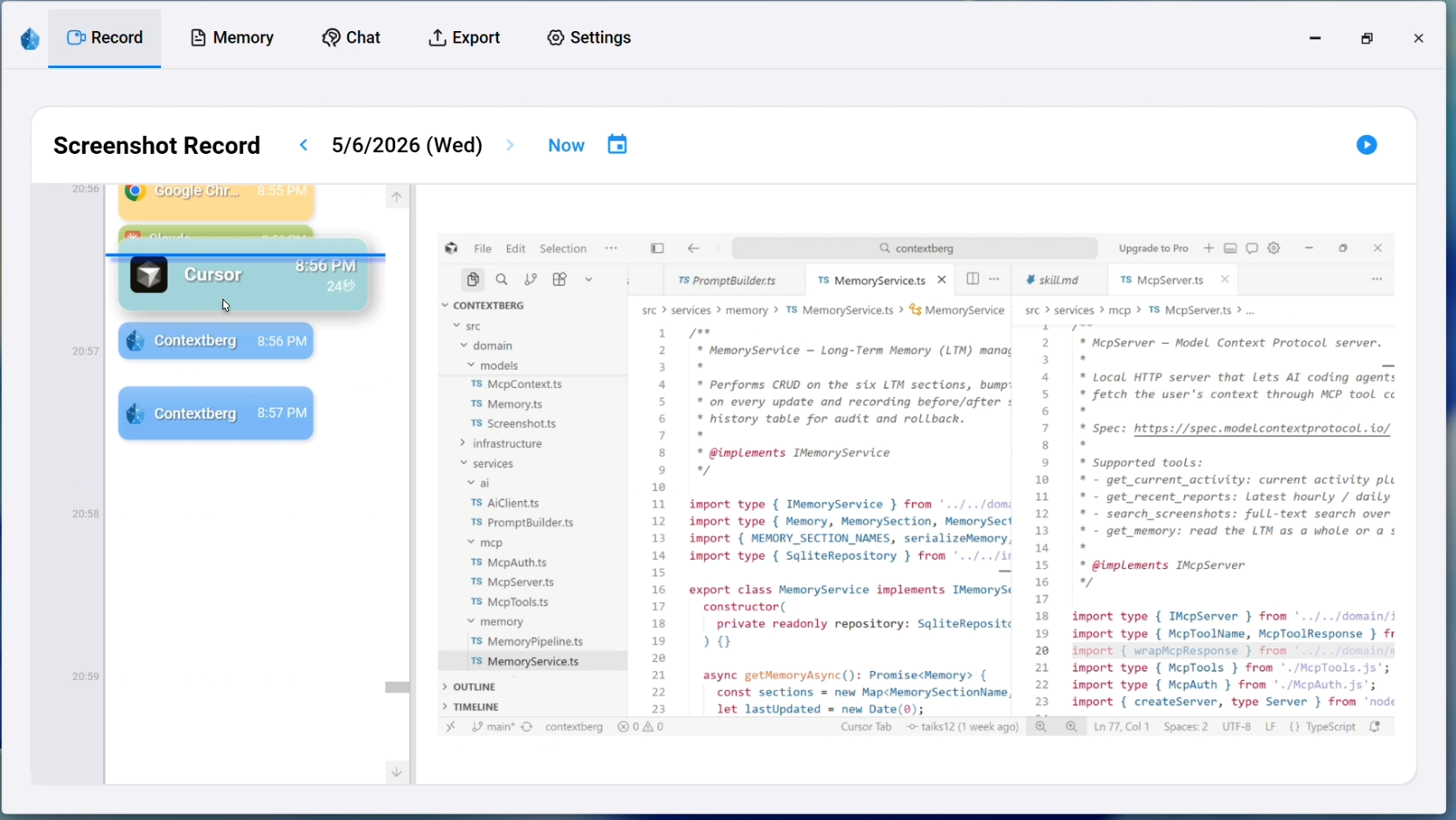
A memory app that records in the background has to be inspectable. The Record tab shows foreground app changes, screenshots, browser history, and usage charts so you can see what is being captured.
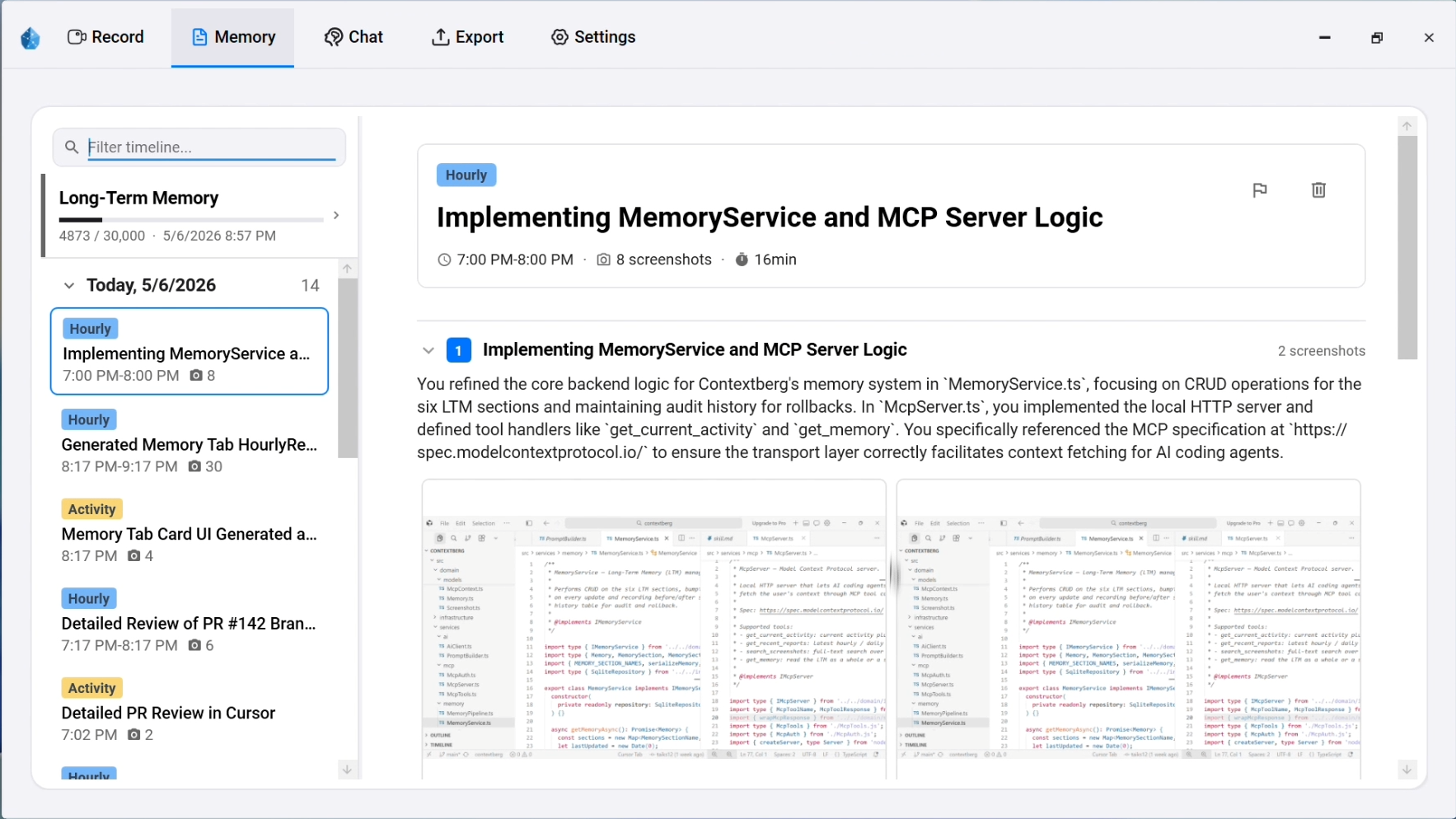
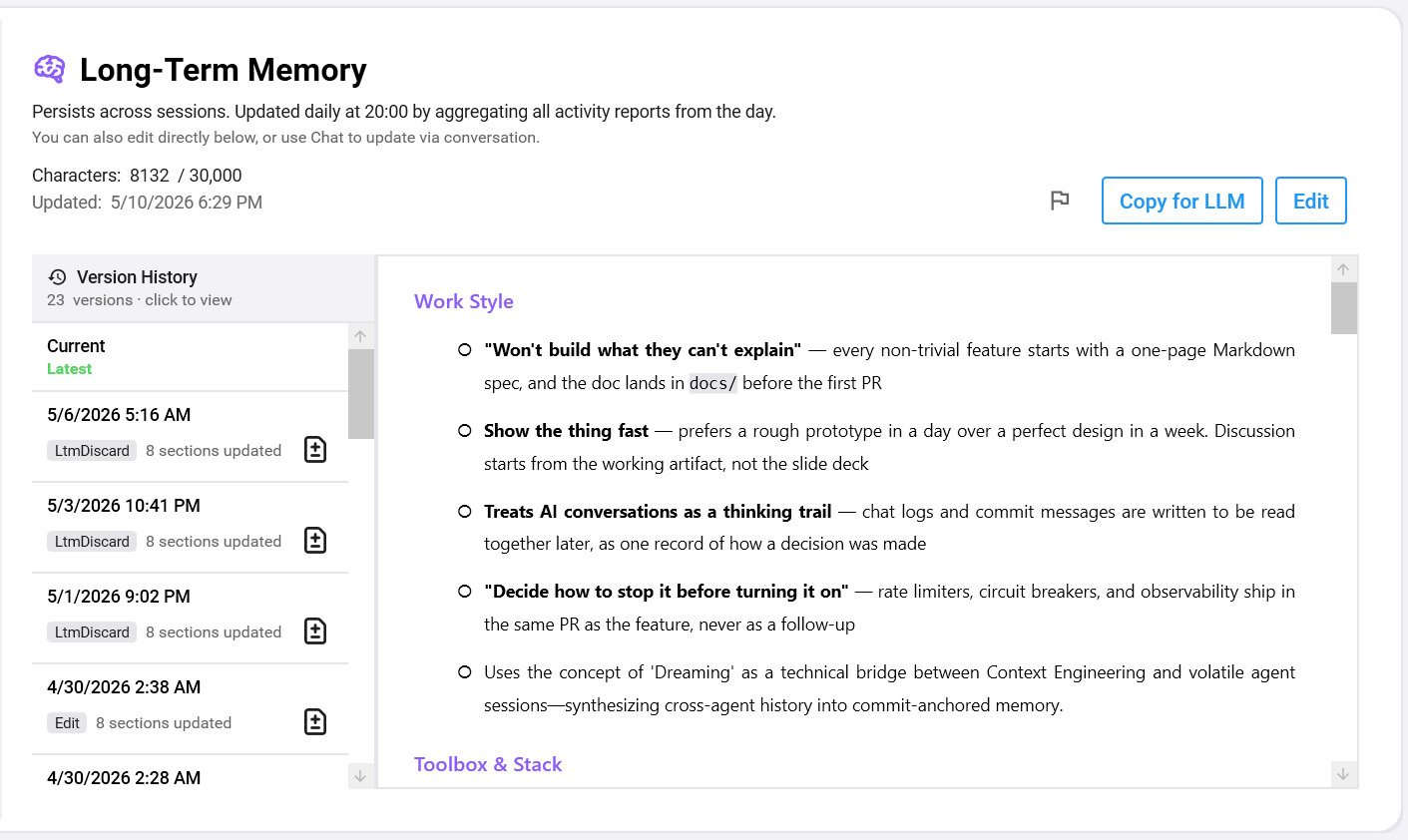
The Memory tab lets you inspect short-term reports and long-term memory. Long-term memory can be edited manually, so wrong assumptions can be removed and useful preferences can be added.
Three memory layers
Contextberg uses three memory layers: Activity, Hourly Report, and Long-Term Memory. Activity is updated frequently and is useful for questions like what was I just doing. Hourly Report turns one hour of activity into a natural-language summary. Long-Term Memory extracts durable facts such as projects, preferences, tools, and work patterns.
This is not a simple compression pipeline. Each layer has a different use case. Short-term context helps with immediate recovery. Hourly summaries support daily review. Long-term memory gives agents stable background knowledge before a task starts.
How MCP connects the memory
Contextberg runs a local HTTP server inside the desktop app and exposes a thin MCP bridge through npm. A Claude Desktop configuration can start the bridge with npx and connect it to the local Contextberg app.
The MCP tools include get_activity for recent work, get_daily_memory and get_weekly_memory for reports, get_agent_history for Claude Code / Cursor / Codex conversation turns, read_ltm for long-term memory, and update_ltm for appending durable facts.
Choose your recording scope and processing route
Choose the work context you want to retain, review your recording settings, and keep that history on your computer. Recording permissions and available controls follow the OS-specific app.
For on-device AI, configure the relevant processing steps to use a local model. For a cloud route, the context needed for the request is sent to the provider you choose. Select the model and processing route that fit the task.
Review the capture and exclusion controls in your app before your first recorded session. This gives you a deliberate starting point for the history you later use in summaries and agent conversations.
Why lightweight desktop matters
Contextberg is designed for everyday background use, with lightweight operation as a design priority. Its macOS and Windows apps are built around their respective operating systems.
Download the packaged app for your OS, set your recording scope, and begin with a normal work session. Local AI is an optional next step you can configure with a supported model.
Who this is for
Contextberg is for developers who use Claude Code, Codex, Cursor, GitHub Copilot, and MCP workflows every day. The more agents you use, the more painful context fragmentation becomes.
It is also for people who are tired of explaining where they left off, want to resume work faster, or want local-first AI memory without sending their entire work history to a hosted memory service.
Where Contextberg sits in the memory landscape
AI memory is not one category. Mem0, Letta, agentmemory, Claude-Mem, Recall-style screen history, and Contextberg solve adjacent but different problems.
| Layer | Examples | Best for | Contextberg's angle |
|---|---|---|---|
| Memory API / SDK | Mem0 | Adding memory to your own AI app | Contextberg is not an SDK; it gives existing tools local work context |
| Agent runtime | Letta | Building stateful agents | Contextberg keeps memory on the user's work environment side |
| Coding agent memory | agentmemory, Claude-Mem | Helping coding agents remember prior sessions | Contextberg also captures screen, browser, app, and keyboard context |
| Screen history | Microsoft Recall, screenpipe, OpenRecall | Searching what you saw on your computer | Contextberg uses similar local signals, but the output is MCP-readable work memory |
The MCP bridge is not the data store
The npm package is intentionally thin. `@contextberg/mcp-server` is a bridge between MCP JSON-RPC and the local Contextberg API running at `http://localhost:18080`. The desktop app owns the data; the bridge only makes it readable to MCP clients.
That matters for trust. A memory bridge should not look like a telemetry collector or a cloud sync daemon. The useful boundary is local app, local API, token-guarded access, and MCP tools that return shaped work context instead of raw dumps.